
Table Element
The Table element is a utility element provided to assist with building simple list based content. Table elements are given a target array in the JSON payload and will automatically construct a managed collection of Row and Column elements that display tabular data based off the data contained in the targeted array. During construction, the Table element will attempt to pick the best element type to display the data in the body columns, these types can be changed in the Table Columns property section in the properties panel.
Once the element has constructed the table, you can begin customizing both the Header and Body Row and Column elements. Content contained within the Table element is managed by the element itself, you cannot reorder, remove or add any content directly, it must be done through the provided property controls.
Because of the managed aspect of the Table element, it is restricted to displaying a simple table structure. If a more complex table structure is required, you’re better off using a combination of layout elements and their dynamics functionality.
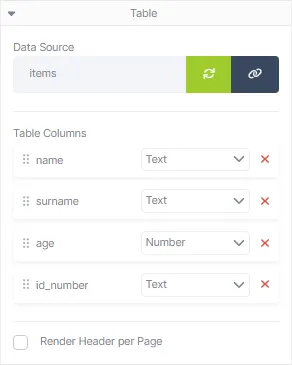
Table Properties
Section titled “Table Properties”| Field | Description |
|---|---|
| Data Source | The array property in the JSON payload used to drive table construction. If the JSON payload structure changes, the Refresh Data Source button can be used to add any new properties on the JSON object. Note: Refreshing the data source will add new columns to the table if needed, but it will not remove any columns if the property no longer exists. Unwanted columns will need to be removed manually. |
| Table Columns | The list of columns managed by the Table element. Each item in the list corresponds to a property found in the first JSON object in the targeted array and the order of the items indicates the order they appear in the table. The order of the items can be rearranged by dragging an item above or below any other item in the list. The element type used to display the item can be changed using the provided drop down. An item can be removed from the table by clicking on the delete button. |
| Render Header per Page | Toggles whether or not the header content should be rendered each time the table is split and continued on a new page. |
When working with Table elements, the visual designer provides a shortcut button whenever any of its child elements are selected. When this button is clicked the parent Table element object will be selected:
